

Important: Before starting, please read the IAS Audio Protocol
Turn on Hardware
- Turn on Audio in Siemens Panel PRESET tab:
- Middle column (Scheinwerfer!!): “Speakers” or “ALLES” ⇾ abrufen
- Right column: “sound xR” ⇾ abrufen
- Turn on the Yamaha CL3 Mixer.
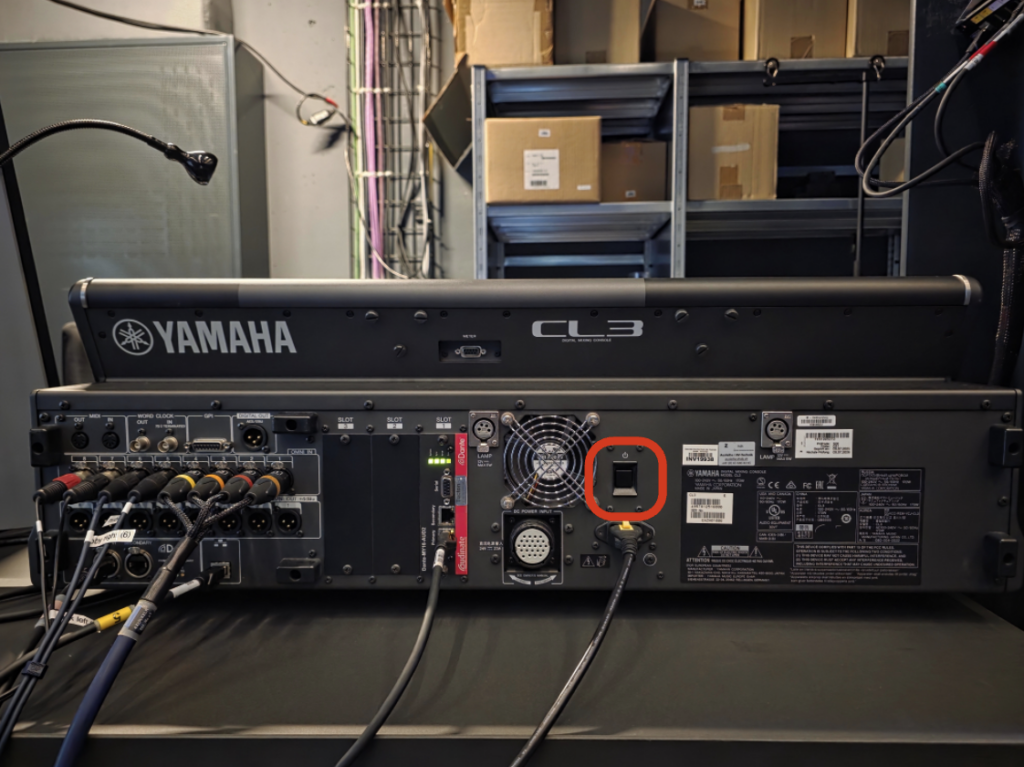
- On the Yamaha CL3 Mixer, check the SCENE field on the bottom-right corner. The “IAS BASE” preset should be selected. If not, tap on the “SCENE …” field to open the scene selection menu. Tap on the“IAS BASE” preset and select “RECALL” to load the preset.
- Turn on and log into the Mac Pro (Audio Computer “OP8“) that is next to the Yamaha CL3 mixer.
Configure Dante
- On the desktop, double-click on the file IAS_AUDIO_SETUP.command. Several windows will open in succession.
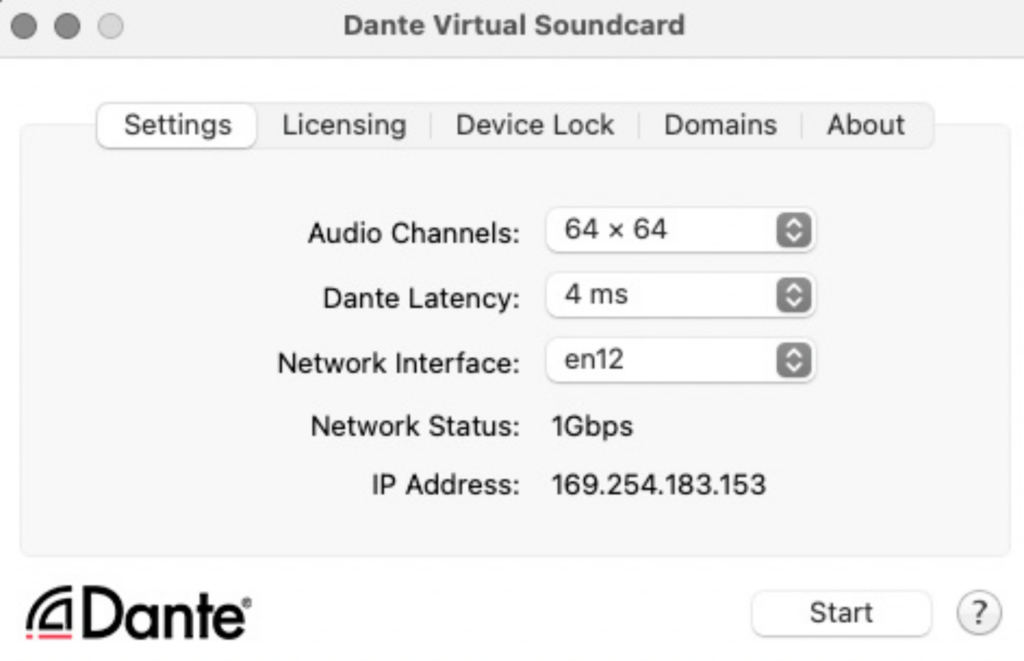
- In the Dante Virtual Soundcard window, verify that the settings match the screenshot below and click “Start.” To change settings, click “Stop” first.
- In the Dante Controller window, the default file should already be loaded. If you ever need to reload it, the file can be found under OneDrive > Immersive Arts Space – Dokumente > 03_Infrastructure > 04_audio > 00_base_setup > 00_BASE > 2026_DanteController_base.xml. This preset routes the OP8 as the default device.
Choose a spatialization scheme
WORKFLOW A: You do the spatialization yourself (you have your own patch). –> Set your AUDIO OUTPUT device to “Dante Virtual Soundcard” channels 1-32. Note: You must create your own mix for your sub channel and output via channel 64. Refer to this guide for an example with the OP8.

WORKFLOW B: You do spatialization through the Yamaha Sound xR Image Controller. –> Set your AUDIO OUTPUT device to “Dante Virtual Soundcard” channels 33-56. Refer to this guide for an example with the OP8.

Using your own computer
If you have Dante on your computer: Refer to the above workflows, but replace the OP8 Dante routing with your own computer. Make sure you save the configuration to your own Dante preset (do not overwrite the default preset!).
If you do not have Dante on your computer: Contact Melody or Sébastien for a short tutorial on using the RME DigiFace.
Troubleshooting
Q: I do not see the audio computer (01-OMICRONPERSEI8) in the Dante Controller.
A: Press the refresh button on the top of the program.
Q: The Dante preset had problems loading.
A: Keep the Dante window in the foreground when loading the preset. If that doesn’t work, copy the base preset to the desktop and load it from there.
 sebastien schiesser