

Important: Before starting, you must complete the QUICKSTART: Audio Setup Guide first.
Overview
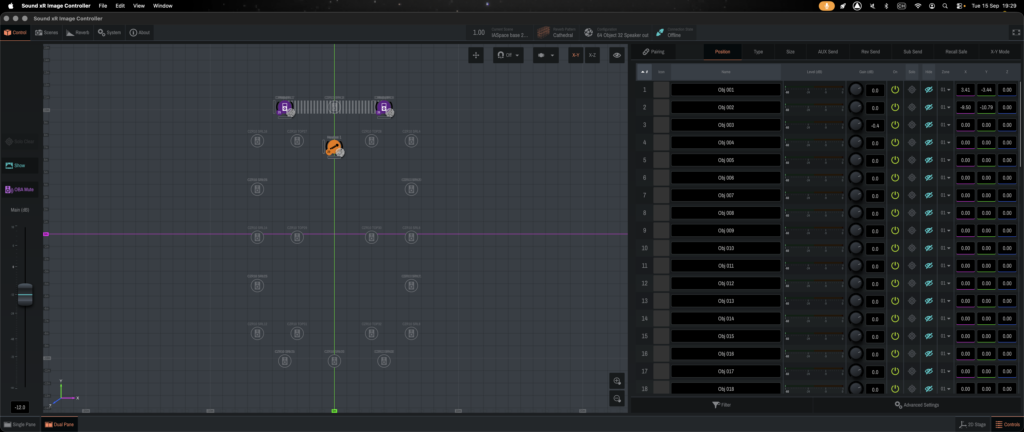
The Yamaha Sound xR Image Controller handles the spatialization for you. Simply send your sounds sources to the CL3 mixer and control their position via the app’s interface or via OSC (guide coming soon).
Setup
With a Dante device
- You should see the Dante device appearing in the Controller windows
- Patch your device’s output channels to the CL3’s inputs between 33 and 56 (called Obj-01 to Obj-24)
With an analoge source
Note: the CL3 has only 8 analog inputs (Omni in). If you need more, you have to use a converter (type Yamaha RIO) and connect your sources as a Dante device (see above).
- Connect your analog source into one of the Omni in
- The CL3 analog channels are on channels 57 to 63, thus become Obj-25 to Obj-31
Connecting the sound xR processor
- The Sound xR program should already open (if you completed the QUICKSTART guide). Each mixer channel connected above corresponds to a sound object in the Yamaha Sound xR program. E.g., Channel 33 = Obj 001, Channel 34 = Obj 002, etc. The correct object names should anyway appear on the mixer.
- Click on “Offline” at the upper-right corner.
- Select the network interface within the 10.21.136.xxx or 10.21.137.xxx range
- Click on “Select Device” and find the DME7
- All other settings should match the following picture
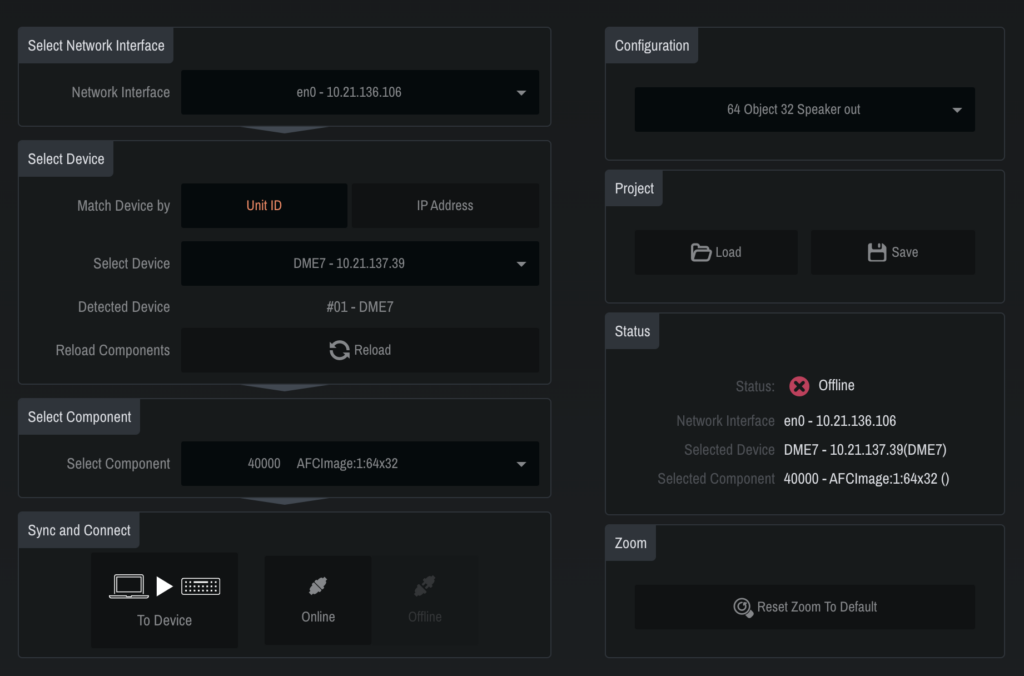
- Click “Online” on the bottom.
- Click “Control” on the top toolbar to go back to the controlling interface.
Using sound xR
When signal is sent from the CL3 channels 33 to 63, it shows in the sound xR input meter on the right pane. Then:
- Make sure the object is on and has an appropriate gain
- Uncheck the blue eye in the ‘Hide’ column
- Rename the object and give it an icon
Your object is now in the room (left pane) and you can start click&drag it in the X-Y plane. If you need to elevate your object, change the room view to X-Z.
 sebastien schiesser