
Our preferred way to install python on our windows machines is via pyenv
- Open a Terminal (Cmd-space -> Spotlight search -> ‘Terminal’)
- If you have not installed Homebrew yet..
- > https://realpython.com/intro-to-pyenv/#preparing-macos-systems-for-pyenv
- Follow the instructions
- There is also a short introduction on how to use the tool
- Open a Powershell in admin mode
- > https://realpython.com/intro-to-pyenv/#installing-pyenv-win-on-windows
- Follow the instructions
- There is also a short introduction on how to use the tool
- Run pyenv version to check if the installation was successful.
- Run pyenv install -l to check a list of Python versions supported by pyenv-win
- Run pyenv install <version> to install the supported version
- Run pyenv global <version> to set a Python version as the global version
To set a python version as the local version (it needs to be already installed) within a folder (usefull for creating a (Python - venv) ): pyenv local <version> commands List all available pyenv commands
local Set or show the local application-specific Python version
latest Print the latest installed or known version with the given prefix
global Set or show the global Python version
shell Set or show the shell-specific Python version
install Install 1 or more versions of Python
uninstall Uninstall 1 or more versions of Python
update Update the cached version DB
rehash Rehash pyenv shims (run this after switching Python versions)
vname Show the current Python version
version Show the current Python version and its origin
version-name Show the current Python version
versions List all Python versions available to pyenv
exec Runs an executable by first preparing PATH so that the selected
Python version's `bin' directory is at the front
which Display the full path to an executable
whence List all Python versions that contain the given executableCreating lightweight “virtual environments” allows to use for each python app its own python environment. When we use python apps on the machines in IASpace and a venv is required, we can follow these simple steps:
- Open Terminal (on MacOS: cmd-space > Spotlight Search > ‘Terminal^)
- Navigate to your project
cd /path/to/your/python/project- or just enter
'cd‘ (with a trailing space)- and drag the folder from the finder into the terminal
- Create virtual Environment (invisible folder .venv)
python -m venv .venv
- Activate Environment
source .venv/bin/activate
- Navigate to your project
- You might need first to enable running scripts inside powershell
- Open Microsoft Powershell as Administrator and execute
Set-ExecutionPolicy unrestricted -> Yes to All
- Open Microsoft Powershell as Administrator and execute
- Open Microsoft Powershell
- Navigate to your project
cd C:\path\to\your\python\project
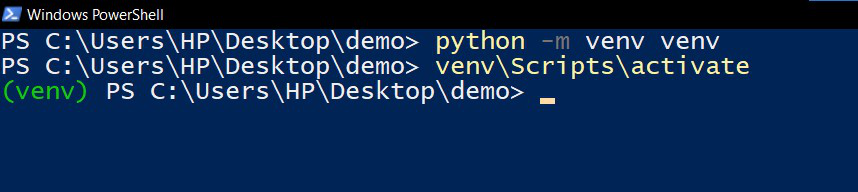
- Create virtual Environement
python -m venv venv
- Activate Environment
venv\Scripts\activate
- Navigate to your project
 martin froehlich